
Your admissions guide has been updated, but several pages still link to the old PDF. Prajesh Document Link Review helps you find supported uses, choose which records to update and review the replacement before changing saved content.
1. Upload and organise your documents
Install and activate Prajesh Document Link Review, then open Tools → Document Link Review. The document grid loads automatically. Select Upload document to add a PDF, DOC, DOCX, XLS or XLSX file.
New files are saved under your site's configured uploads directory in documents/pdf/, documents/word/ or documents/excel/. WordPress also creates a Media Library attachment and chooses a unique filename. Uploading a file does not change existing links.
The file must meet your site's permitted file types and upload limits. Uploading requires media upload permission and PHP Fileinfo; DOCX and XLSX also require ZipArchive.
2. Find supported document uses
Use Scan posts and pages to refresh the grid. Search for a document or filter by type. Each row shows the filename, local path, whether the file is found on disk and how many editable records use it.
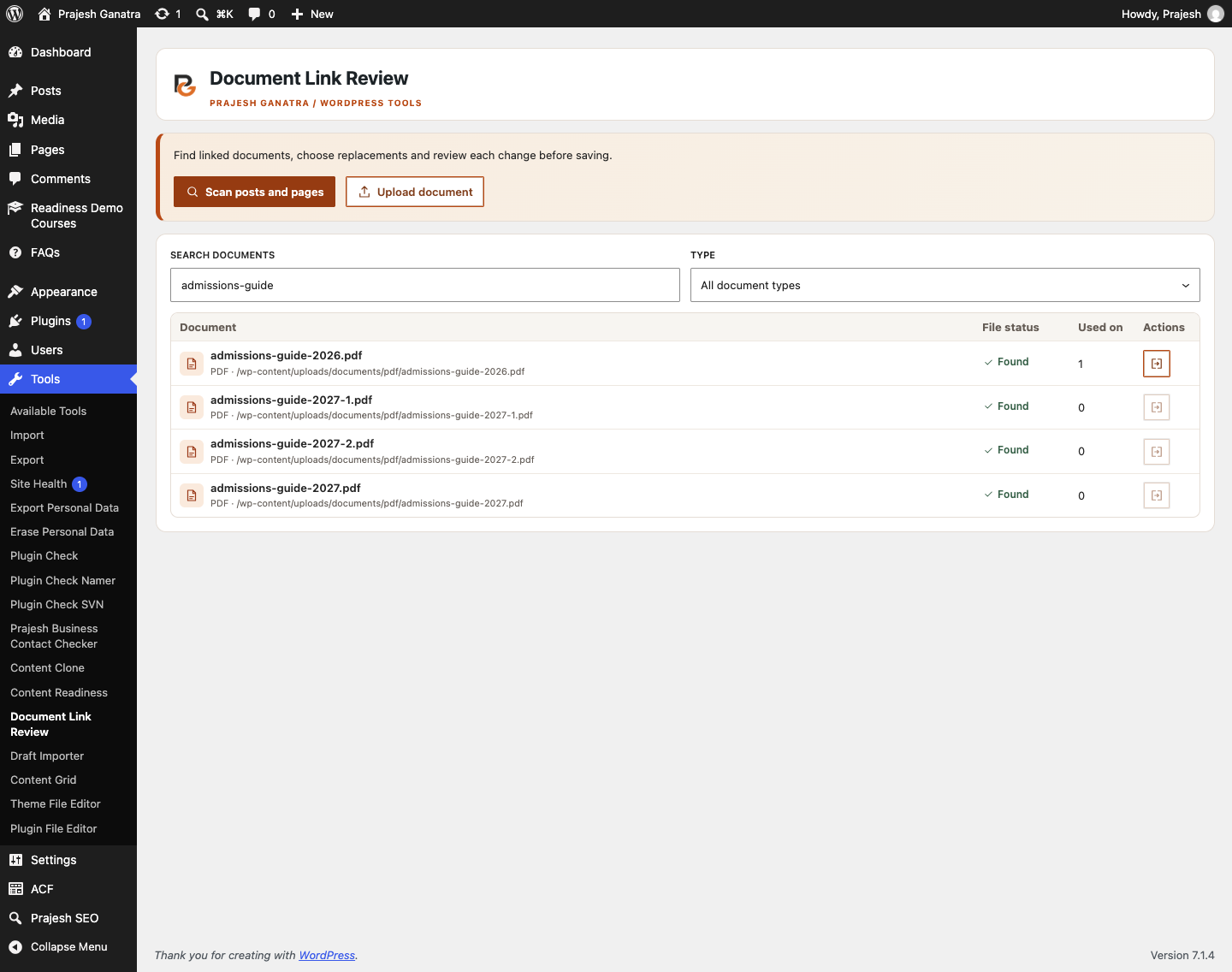
Open the document's Review links action. It is available when supported uses are found. Select up to 25 records for one review; all matching occurrences of that document path in each selected record are included.
3. Choose a replacement and inspect the preview
Select Upload replacement, or Choose from Media Library to select an existing document of the same type. For example, choose the new PDF admissions guide to replace links to the older PDF.
Select Preview changes. Compare the source path, replacement URL and affected record titles. Deselect any records that should retain the old document before preparing a new preview.
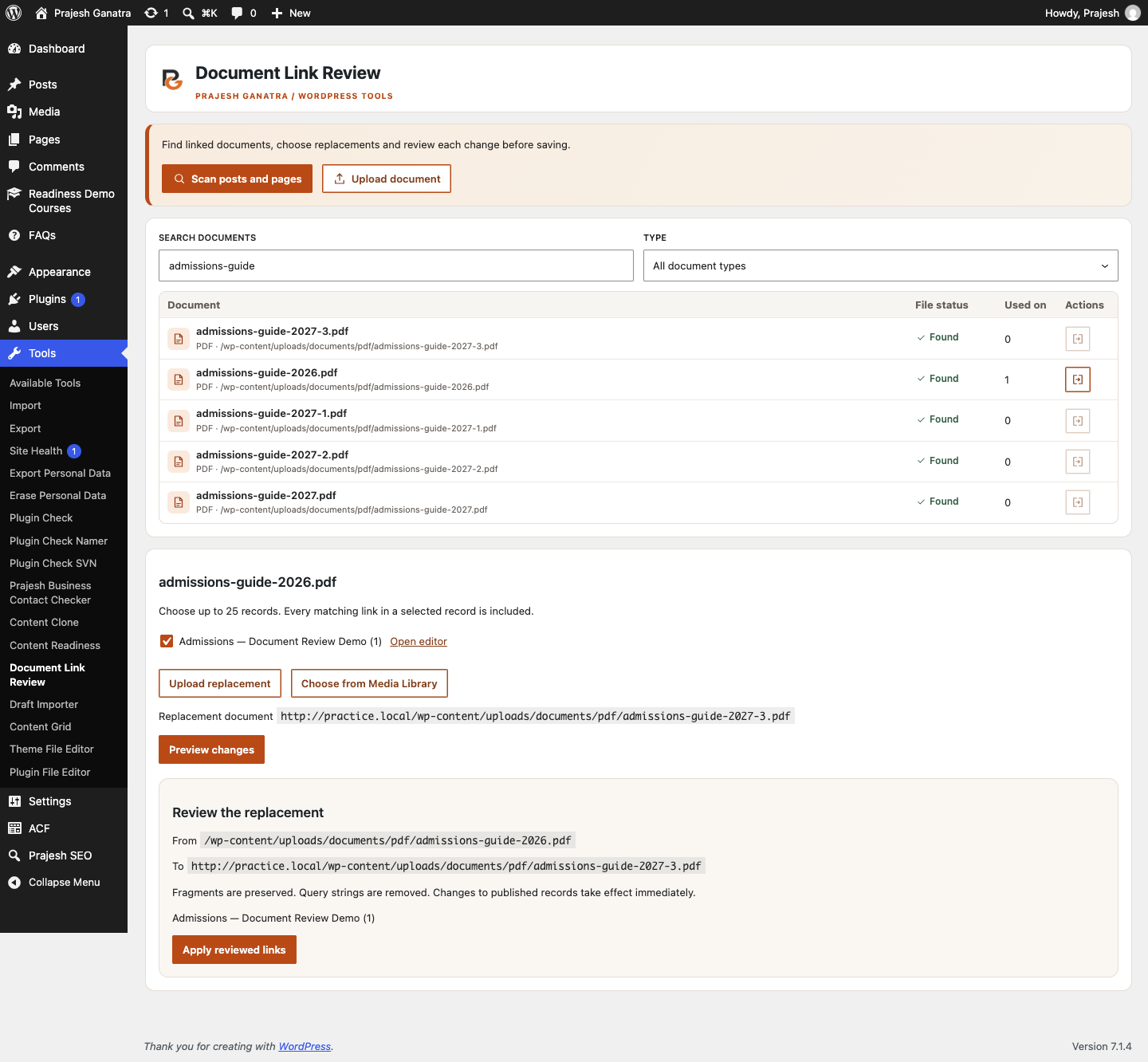
4. Apply the reviewed links and verify the result
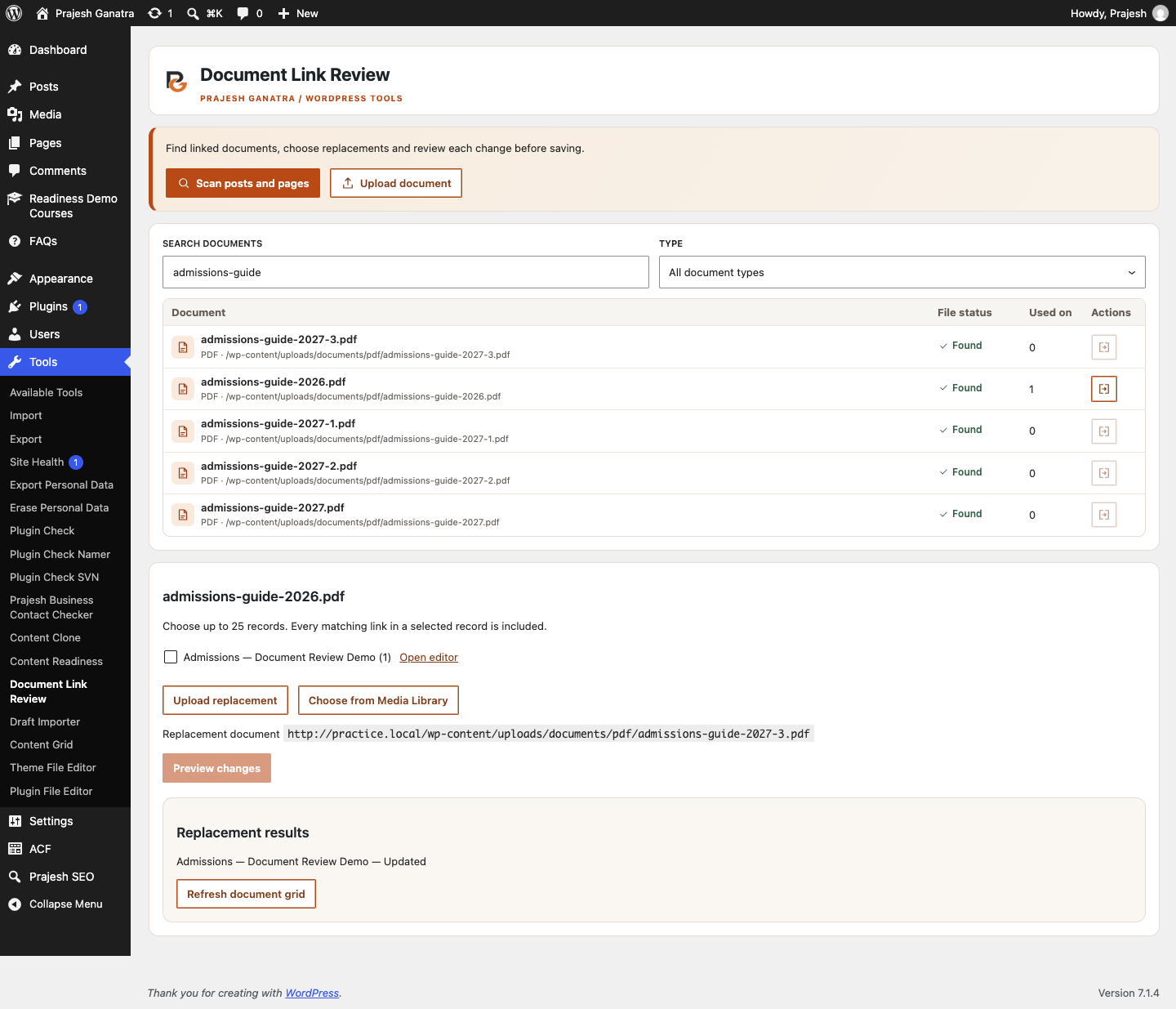
When the preview is correct, select Apply reviewed links. The plugin rechecks permissions, editor locks and whether the reviewed content has changed. Read the result for each record, then use Refresh document grid and open the affected page to verify its links.
Changes to published records take effect immediately. Start with a draft or a small batch. If a record cannot be confirmed, inspect it before retrying. The original attachment and file are retained; this workflow updates selected links rather than overwriting the old document.
Know what the scan covers
The plugin checks anchor links in saved posts and pages, including classic content and supported static WordPress blocks. External URLs, page-relative links, custom fields, page builders, synced patterns, dynamic blocks and template content are outside the scan. Content exceeding 64 levels of nested blocks is skipped.
File status checks local storage; remote-only media may appear missing. Scanning makes no remote requests. The scan and review live in the current browser tab, so rescan after reloading. WordPress stores uploaded files, Media Library attachments and the content updates you apply. Standard WordPress revisions may help recover content if enabled.