
When a marketing team prepares several pages or blog posts in a spreadsheet, copying each record into WordPress creates repetitive work. A useful import workflow lets the team prepare consistent columns, review the records together and leave publishing to an editor.
This tutorial uses my free Prajesh Draft Importer plugin. It creates new drafts from CSV or Excel XLSX files. It does not update existing posts or publish imported content automatically.
Before you start
- Use WordPress 6.5 or later and PHP 8.2 or later.
- Install and activate Prajesh Draft Importer through Plugins → Add New Plugin.
- Use an account with permission to create the selected content type.
- For Excel XLSX files, the server needs PHP ZipArchive and SimpleXML. CSV remains available without those extensions.
Try a small batch on a staging or local site first. The examples shown here use fictional content in a local WordPress installation.
This release imports new text-based records and supported simple fields. Images, taxonomy assignments, relationships, repeaters and arbitrary custom metaboxes are outside its scope.
1. Choose where the content belongs
Open Tools → Draft Importer. Choose Posts, Pages or an eligible custom post type. For example, choose Posts for blog articles or your FAQ post type for reusable questions and answers.
The available fields change with your selection. The plugin can discover supported WordPress fields, registered single-value scalar metadata and supported simple ACF fields. A custom metabox must expose a supported field definition to appear.
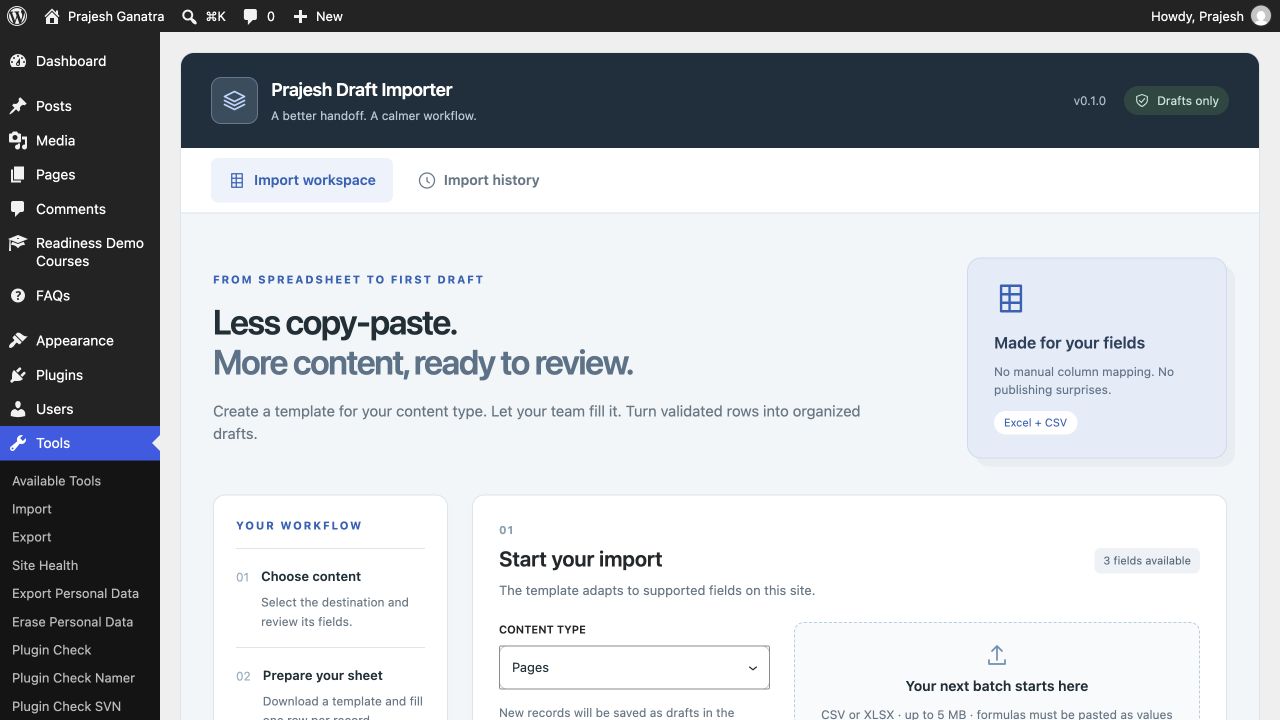
2. Download a fresh template
Use Download Excel template or CSV alternative. The plugin creates an empty template with the column names expected for the selected content type. The Excel workbook also includes a field guide and dropdowns for supported choices.
Keep the headers and their order unchanged. Excel templates carry site and field identity, so generate them on the destination site. Download a fresh template if the fields or administrator language change.
A generic spreadsheet cannot describe every WordPress site's fields. That is why the template comes from your own installation.
3. Fill one row per new record
Put each title, body and supported field value into the matching column. Keep one record per row and do not merge cells. Formatted content fields can contain supported HTML, such as paragraphs and emphasis; WordPress sanitizes the content during import.
| Title value | Content value |
|---|---|
| Planning your first campus visit | <p>Find out what to bring and how to book a visit.</p> |
| Preparing your application documents | <p>Gather your documents before you start your application.</p> |
| Meeting the admissions team | <p>Learn how to contact the team with your questions.</p> |
Download three fictional example records, then copy their values into the template generated on your site. This sample is a source of example text, not a ready-to-upload site-specific template.
Download example content · CSV ↓- Paste calculated results as values. Formulas are rejected.
- Use text-formatted
YYYY-MM-DDdates when a supported date field is present. - Use the exact choice keys listed in the Excel field guide. Separate checkbox choices with
|. - Save as XLSX or CSV, not the older XLS format.
4. Upload, validate and choose the rows
With the destination selected, click Choose spreadsheet. Selecting a file opens the validation preview. If you chose the file before the content type, select the destination and click Validate & preview.
The review grid shows 50 records per page. A 200-record file therefore has four pages. All ready rows are selected by default across the full batch. Deselect individual records you want to leave out, or use the bulk selection controls.
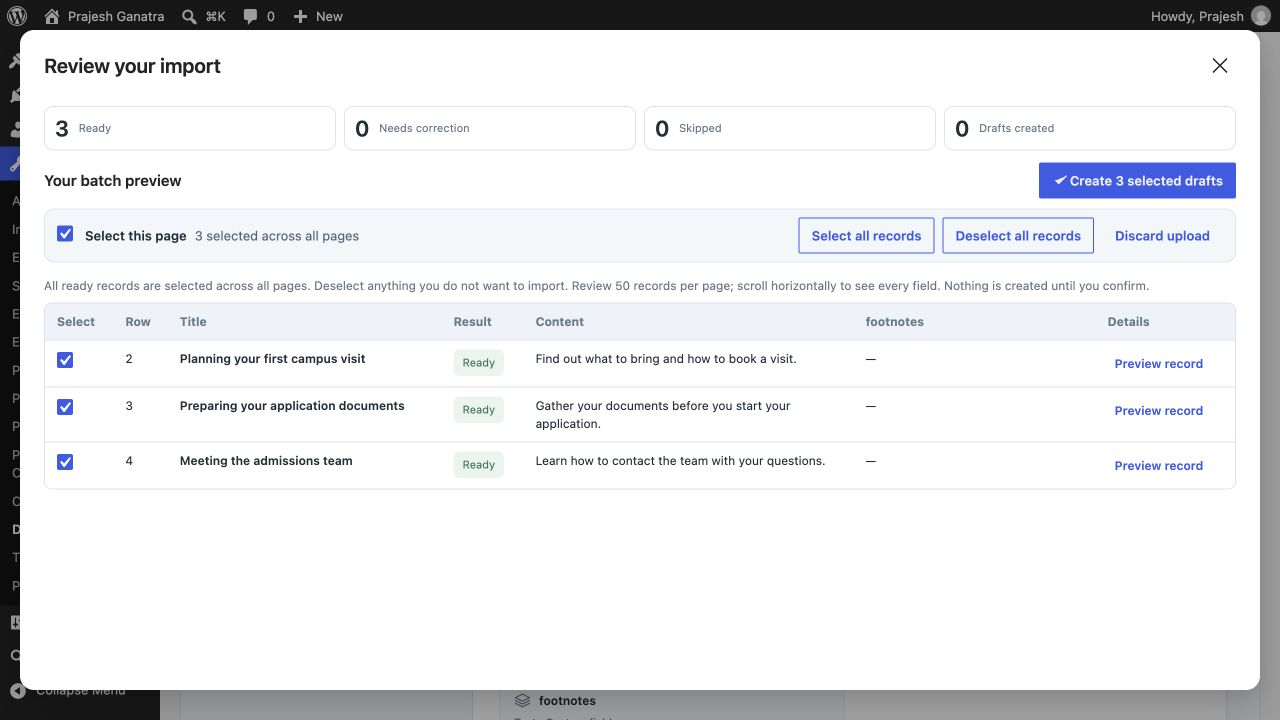
Check each page, read any validation messages and use the formatted preview when you need to inspect a longer answer or article. Fix invalid values in the source sheet and validate again before importing.
5. Confirm and review the new drafts
Click the action to create the selected drafts and confirm your choice. The plugin creates new draft records owned by the importing user. Use the resulting links or your personal import history to open them in the normal WordPress editor.
Review formatting, links and supported custom field values, then publish through WordPress when the content is ready. Existing records remain unchanged. Automatic content matching helps skip identical repeat rows; changing the values can create a new record rather than update an old one.
A row passing validation means its values satisfy the import checks. It does not mean the copy is accurate, approved or ready to publish.
Common validation issues
- “Columns do not match the current template”
- Download a fresh template for the same destination. Copy your values into it without changing headers or column order.
- The Excel file belongs to a different site or field configuration
- Generate the workbook on the destination site. Excel templates are not portable between unrelated field schemas.
- A custom field is missing from the template
- Check that it has a supported declared schema. This release does not discover arbitrary metaboxes or complex ACF fields.
- An identical row is skipped
- Check your import history and existing drafts before trying again. The plugin is designed for new inserts, not updates.
Questions and practical limits
How large can the spreadsheet be?
This release accepts files up to 5 MB, with up to 10,000 rows and 256 columns. Excel archives are also limited to 20 MB uncompressed. Start with smaller batches when checking a new workflow.
Does the spreadsheet go into the Media Library?
No. The original uploaded spreadsheet is not retained in the Media Library. Temporary validation previews expire after 24 hours and are removed after completion or discard. Cleanup of abandoned previews depends on WordPress scheduled tasks. Import history and duplicate markers remain in the database.
Can it update posts, import images or assign categories?
No. Version 0.1.0 creates new drafts only. Images, taxonomy assignments and complex field relationships are not supported. See the plugin guide and current directory listing for release details.